Canvas nodes
Wild Headers
Keep or remove columns by matching their headers against a pattern.
How it works
Enter a pattern for column names and choose whether to keep or remove matches. Use a wildcard or regular expression to handle a family of similarly named fields.
Simple example
Set the wildcard Draft_* and choose Remove. Columns such as Draft_Note and Draft_Status disappear, while the other fields and all rows remain.
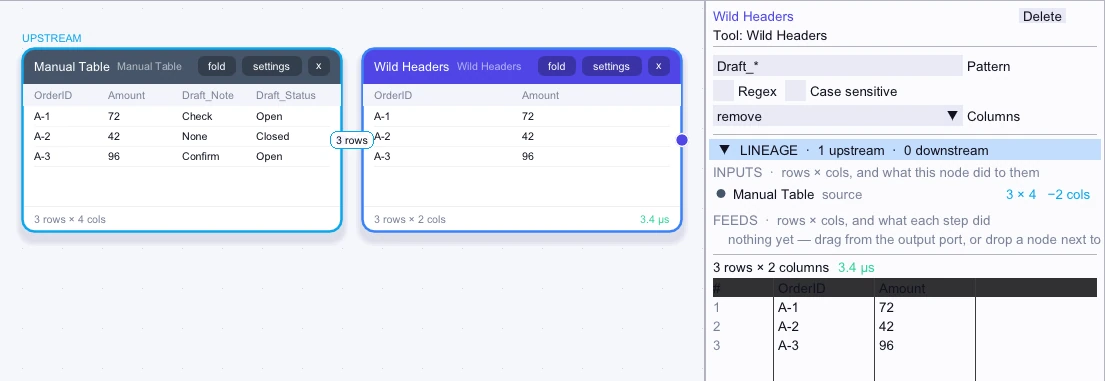
Input
3 rows| OrderID | Amount | Draft_Note | Draft_Status |
|---|---|---|---|
| A-1 | 72 | Check | Open |
| A-2 | 42 | None | Closed |
| A-3 | 96 | Confirm | Open |
Node output
3 rows| OrderID | Amount |
|---|---|
| A-1 | 72 |
| A-2 | 42 |
| A-3 | 96 |
Complex workflow
Use a regular expression to keep OrderID, Region, and all fields beginning Sales_. This prepares a reporting table without diagnostic columns, even when a later export adds another sales measure.
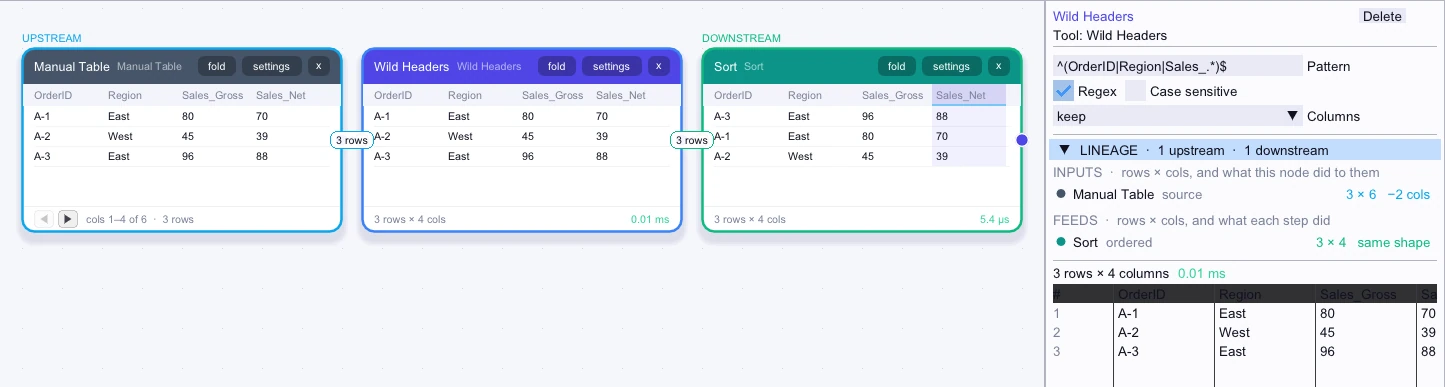
Input
3 rows| OrderID | Region | Sales_Gross | Sales_Net | Debug_Mode | Import_File |
|---|---|---|---|---|---|
| A-1 | East | 80 | 70 | off | oct-a.csv |
| A-2 | West | 45 | 39 | off | oct-b.csv |
| A-3 | East | 96 | 88 | on | oct-a.csv |
Node output
3 rows| OrderID | Region | Sales_Gross | Sales_Net |
|---|---|---|---|
| A-1 | East | 80 | 70 |
| A-2 | West | 45 | 39 |
| A-3 | East | 96 | 88 |
Workflow result
3 rows| OrderID | Region | Sales_Gross | Sales_Net |
|---|---|---|---|
| A-3 | East | 96 | 88 |
| A-1 | East | 80 | 70 |
| A-2 | West | 45 | 39 |