Canvas nodes
String Concat
Combine selected text columns with a separator.
How it works
Select the columns in the order you want them combined, then choose a separator and name the new field. You can keep the original columns too.
Simple example
Select FirstName and LastName in that order, choose a space as the separator, and name the result DisplayName. Keep the two source columns if they are still useful.
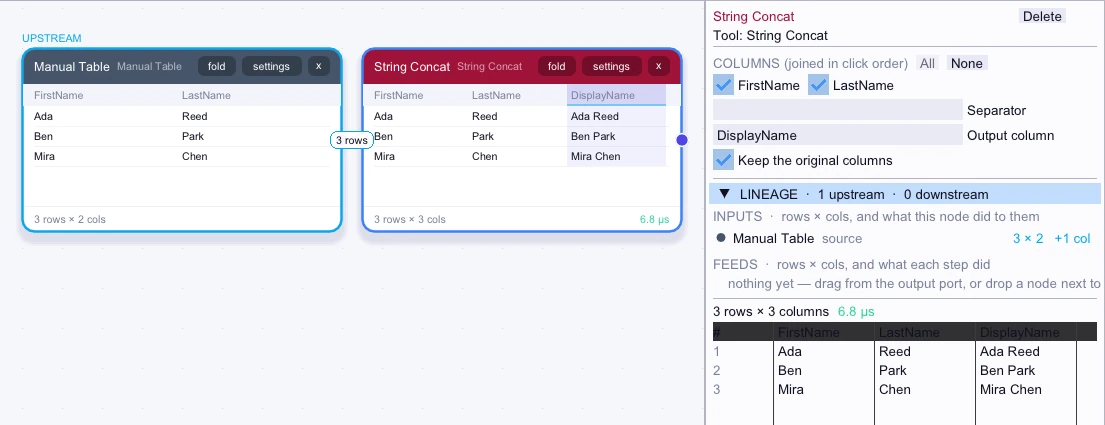
Input
3 rows| FirstName | LastName |
|---|---|
| Ada | Reed |
| Ben | Park |
| Mira | Chen |
Node output
3 rows| FirstName | LastName | DisplayName |
|---|---|---|
| Ada | Reed | Ada Reed |
| Ben | Park | Ben Park |
| Mira | Chen | Mira Chen |
Complex workflow
Join Warehouse and Bin with a hyphen to make a LocationKey while preserving both fields. Use the new key to join stock rows with a lookup that holds pick zones.
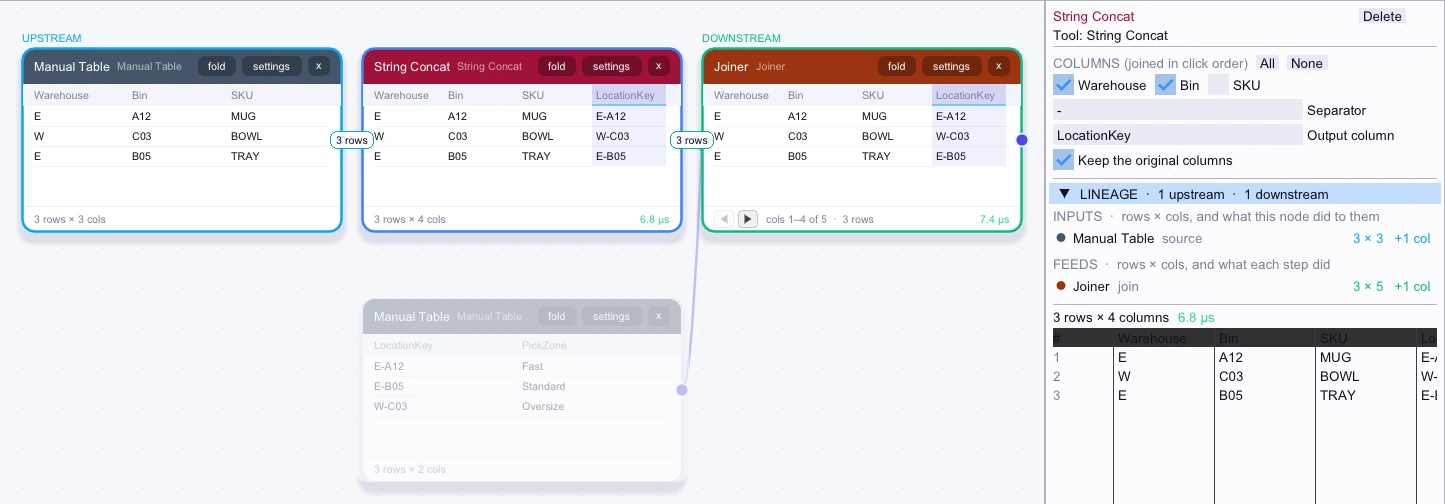
Input
3 rows| Warehouse | Bin | SKU |
|---|---|---|
| E | A12 | MUG |
| W | C03 | BOWL |
| E | B05 | TRAY |
Node output
3 rows| Warehouse | Bin | SKU | LocationKey |
|---|---|---|---|
| E | A12 | MUG | E-A12 |
| W | C03 | BOWL | W-C03 |
| E | B05 | TRAY | E-B05 |
Workflow result
3 rows| Warehouse | Bin | SKU | LocationKey | PickZone |
|---|---|---|---|---|
| E | A12 | MUG | E-A12 | Fast |
| W | C03 | BOWL | W-C03 | Oversize |
| E | B05 | TRAY | E-B05 | Standard |