Canvas nodes
Null Value
Fill missing values or remove rows that are missing a selected value.
How it works
Choose which fields to check. Fill gaps with a fixed value or remove rows where any selected field is missing.
Simple example
Select Carrier and choose Replace to fill missing values with Unassigned. Rows with a carrier already entered keep their existing value.
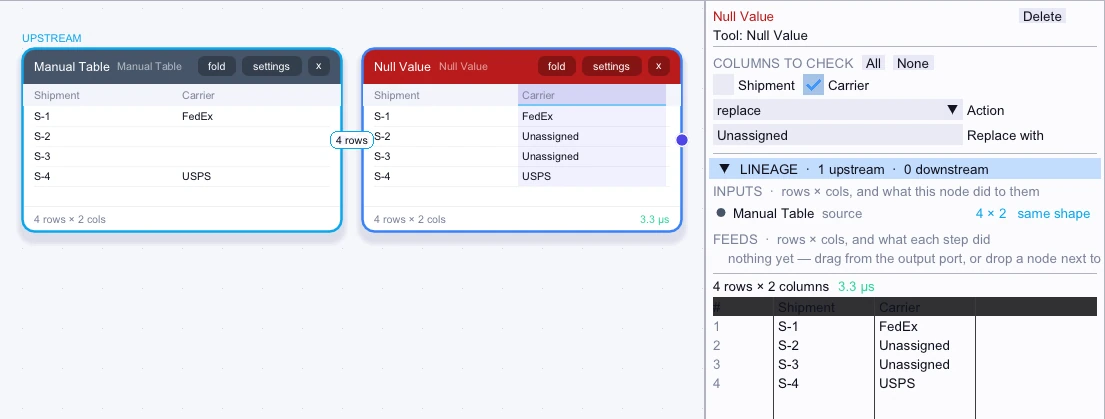
Input
4 rows| Shipment | Carrier |
|---|---|
| S-1 | FedEx |
| S-2 | — |
| S-3 | — |
| S-4 | USPS |
Node output
4 rows| Shipment | Carrier |
|---|---|
| S-1 | FedEx |
| S-2 | Unassigned |
| S-3 | Unassigned |
| S-4 | USPS |
Complex workflow
Select OrderID and Amount and choose Remove to keep only rows with both fields present. Group the remaining records by Region to sum the orders with enough information to report.
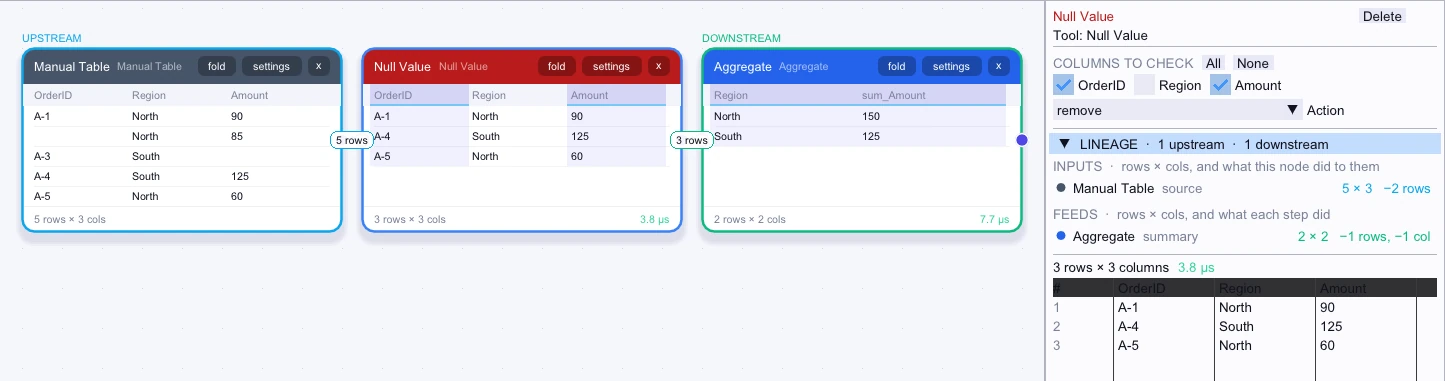
Input
5 rows| OrderID | Region | Amount |
|---|---|---|
| A-1 | North | 90 |
| — | North | 85 |
| A-3 | South | — |
| A-4 | South | 125 |
| A-5 | North | 60 |
Node output
3 rows| OrderID | Region | Amount |
|---|---|---|
| A-1 | North | 90 |
| A-4 | South | 125 |
| A-5 | North | 60 |
Workflow result
2 rows| Region | sum_Amount |
|---|---|
| North | 150 |
| South | 125 |