Canvas nodes
Neon Input
Read a stored table into a workflow.
How it works
Select a stored table in the node and load its rows into Canvas. Set the row limit or reload the table when you need fresh data.
Simple example
Choose the orders table from the local app cache and set how many rows should flow into Canvas. Check the order ID, status, and total in the node preview.
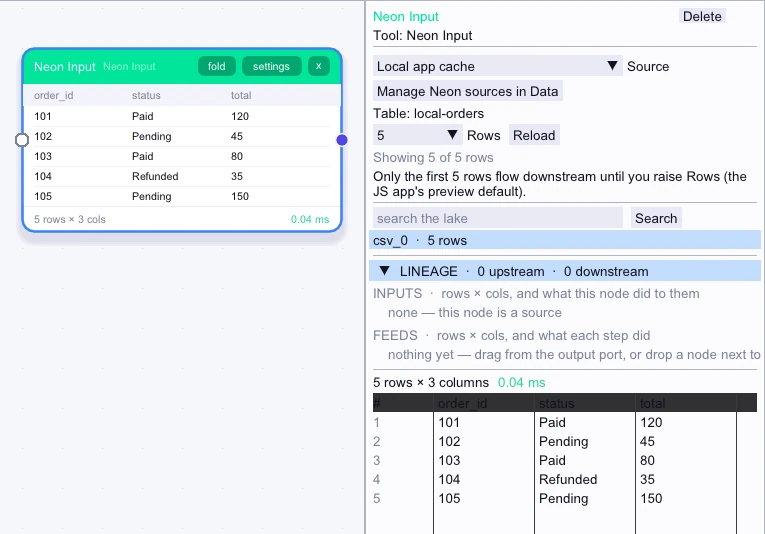
Loaded rows
5 rows| order_id | status | total |
|---|---|---|
| 101 | Paid | 120 |
| 102 | Pending | 45 |
| 103 | Paid | 80 |
| 104 | Refunded | 35 |
| 105 | Pending | 150 |
Complex workflow
Read the cached orders table, filter its totals to the orders that need review, and sum the amounts by status. For a Neon table, import or refresh its local copy in Data before reloading it in Canvas.
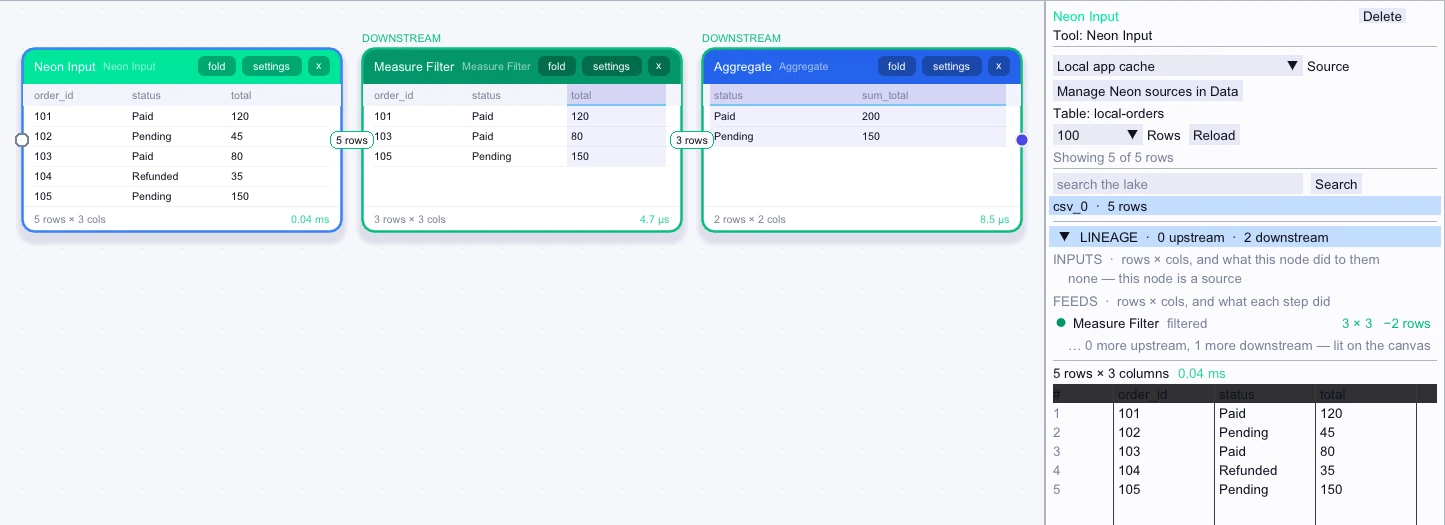
Loaded rows
5 rows| order_id | status | total |
|---|---|---|
| 101 | Paid | 120 |
| 102 | Pending | 45 |
| 103 | Paid | 80 |
| 104 | Refunded | 35 |
| 105 | Pending | 150 |
Workflow result
2 rows| status | sum_total |
|---|---|
| Paid | 200 |
| Pending | 150 |