Canvas nodes
Filter
Keep or remove rows when a cell matches a pattern.
How it works
Enter a pattern to match across the row's cells and choose whether to keep or remove rows with a match. Use the Column Filter node when the pattern belongs to a specific field.
Simple example
Enter Cancelled as the pattern and choose Keep. Filter returns rows with a cell that matches Cancelled anywhere in the table, which helps when the marker can appear in more than one column.
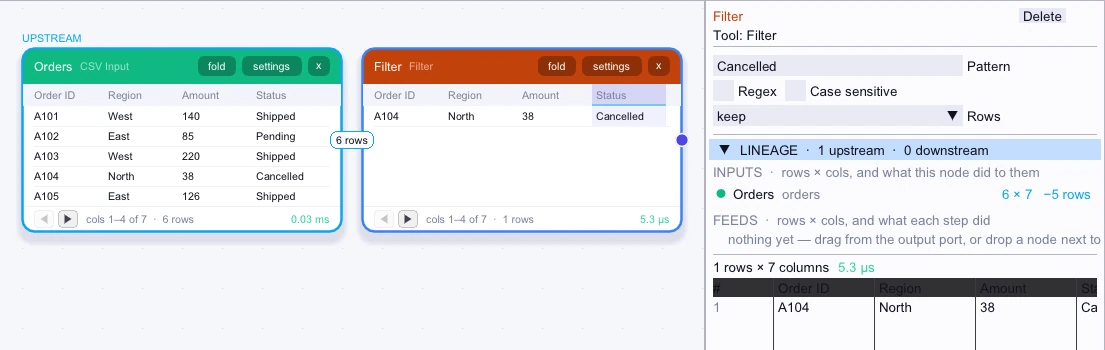
Input
First 5 of 6 rows| Order ID | Region | Amount | Status | Customer ID | Reference |
|---|---|---|---|---|---|
| A101 | West | 140 | Shipped | C1 | Retail |
| A102 | East | 85 | Pending | C2 | Outlet |
| A103 | West | 220 | Shipped | C3 | Retail |
| A104 | North | 38 | Cancelled | C9 | Retail |
| A105 | East | 126 | Shipped | C2 | Outlet |
Node output
1 row| Order ID | Region | Amount | Status | Customer ID | Reference |
|---|---|---|---|---|---|
| A104 | North | 38 | Cancelled | C9 | Retail |
Complex workflow
A combined export puts test identifiers in either Order ID or Reference. Enable Regex, enter ^(TEST|DEMO)-, and choose Remove. A matching prefix in any cell excludes that row, so use Column Filter instead if the check should apply to just one field.
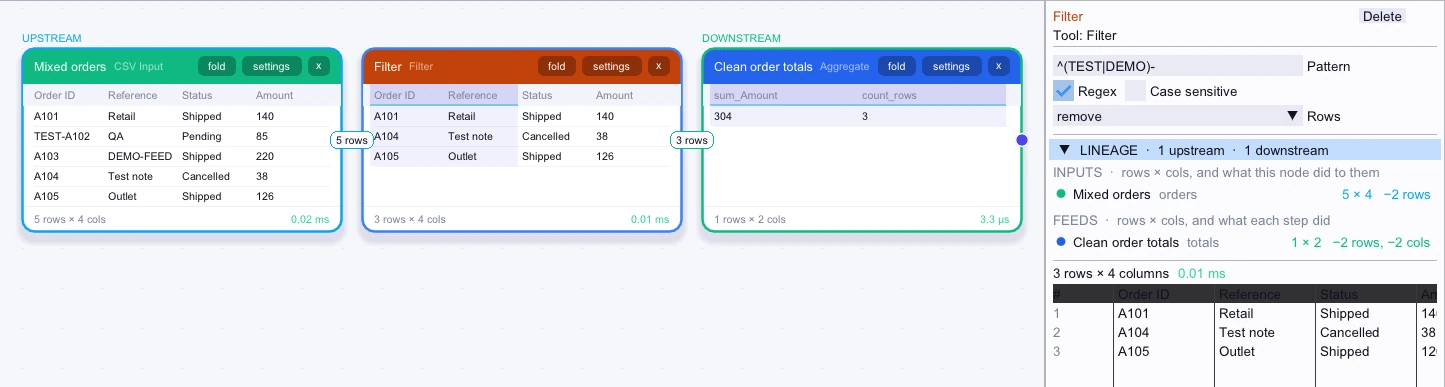
Input
5 rows| Order ID | Reference | Status | Amount |
|---|---|---|---|
| A101 | Retail | Shipped | 140 |
| TEST-A102 | QA | Pending | 85 |
| A103 | DEMO-FEED | Shipped | 220 |
| A104 | Test note | Cancelled | 38 |
| A105 | Outlet | Shipped | 126 |
Node output
3 rows| Order ID | Reference | Status | Amount |
|---|---|---|---|
| A101 | Retail | Shipped | 140 |
| A104 | Test note | Cancelled | 38 |
| A105 | Outlet | Shipped | 126 |
Workflow result
1 row| sum_Amount | count_rows |
|---|---|
| 304 | 3 |