Canvas nodes
Date Filter
Keep or exclude rows by relative dates, fixed ranges, or a date boundary.
How it works
Choose a date field and set a relative window, a fixed range, or a before or after boundary. You can keep the window or exclude it.
Simple example
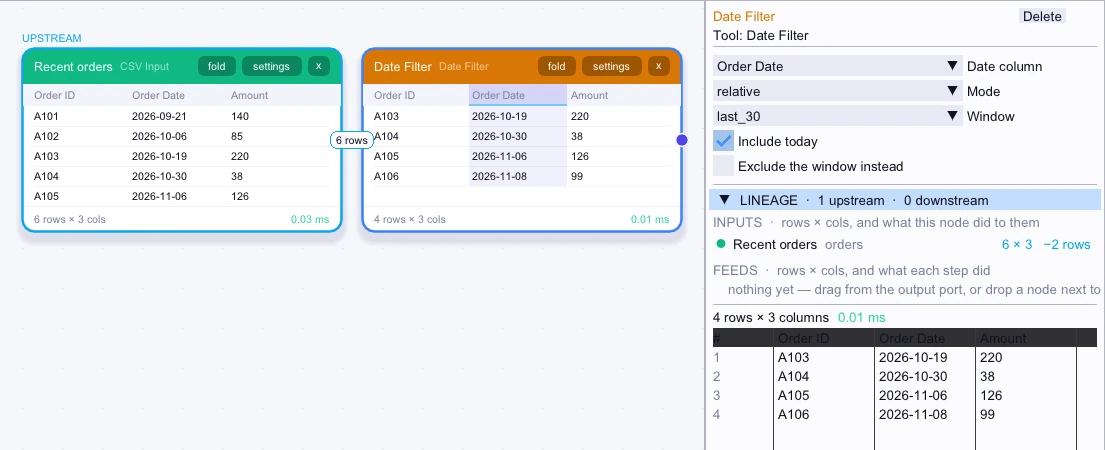
Select Order Date in Date Filter, choose Relative mode, and select the last 30 days. The node passes orders in that window to the next step.
Input
First 5 of 6 rows| Order ID | Order Date | Amount |
|---|---|---|
| A101 | 2026-09-21 | 140 |
| A102 | 2026-10-06 | 85 |
| A103 | 2026-10-19 | 220 |
| A104 | 2026-10-30 | 38 |
| A105 | 2026-11-06 | 126 |
Node output
4 rows| Order ID | Order Date | Amount |
|---|---|---|
| A103 | 2026-10-19 | 220 |
| A104 | 2026-10-30 | 38 |
| A105 | 2026-11-06 | 126 |
| A106 | 2026-11-08 | 99 |
Complex workflow
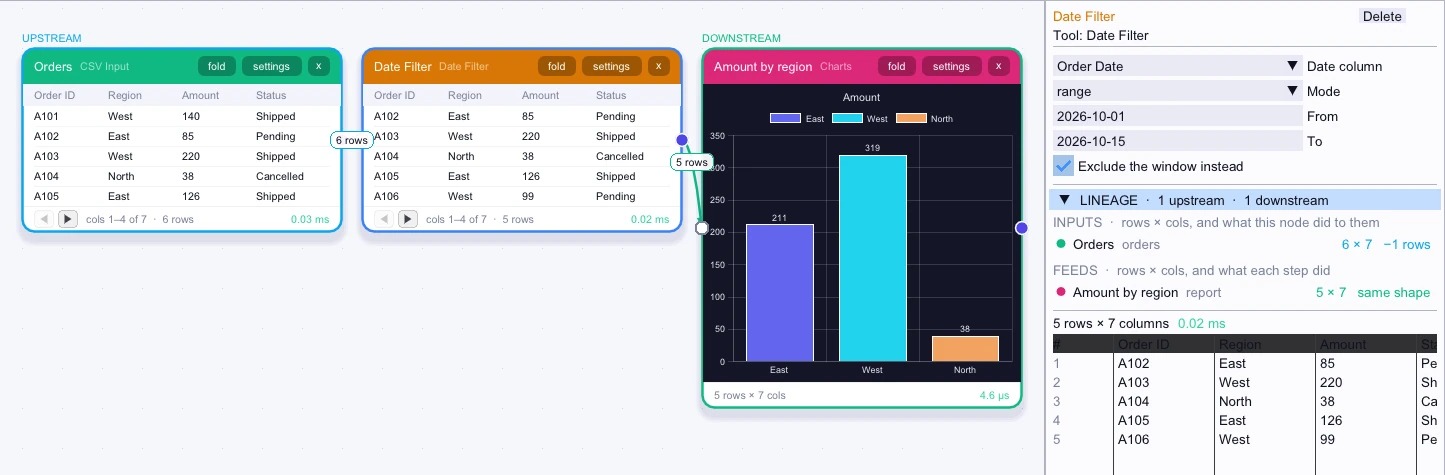
A set of orders includes a migration period you want to exclude from a trend. Set Mode to Range, enter both boundary dates, and enable Exclude the window instead. Send the remaining rows to your chart workflow.
Input
First 5 of 6 rows| Order ID | Region | Amount | Status | Customer ID | Reference |
|---|---|---|---|---|---|
| A101 | West | 140 | Shipped | C1 | Retail |
| A102 | East | 85 | Pending | C2 | Outlet |
| A103 | West | 220 | Shipped | C3 | Retail |
| A104 | North | 38 | Cancelled | C9 | Retail |
| A105 | East | 126 | Shipped | C2 | Outlet |
Node output
5 rows| Order ID | Region | Amount | Status | Customer ID | Reference |
|---|---|---|---|---|---|
| A102 | East | 85 | Pending | C2 | Outlet |
| A103 | West | 220 | Shipped | C3 | Retail |
| A104 | North | 38 | Cancelled | C9 | Retail |
| A105 | East | 126 | Shipped | C2 | Outlet |
| A106 | West | 99 | Pending | C1 | Retail |