Canvas nodes
CSV Input
Load a delimited file or an imported transcript library.
How it works
Choose a local delimited file or select an imported transcript library in the node settings. Connect the loaded rows to a cleanup or analysis step.
Simple example
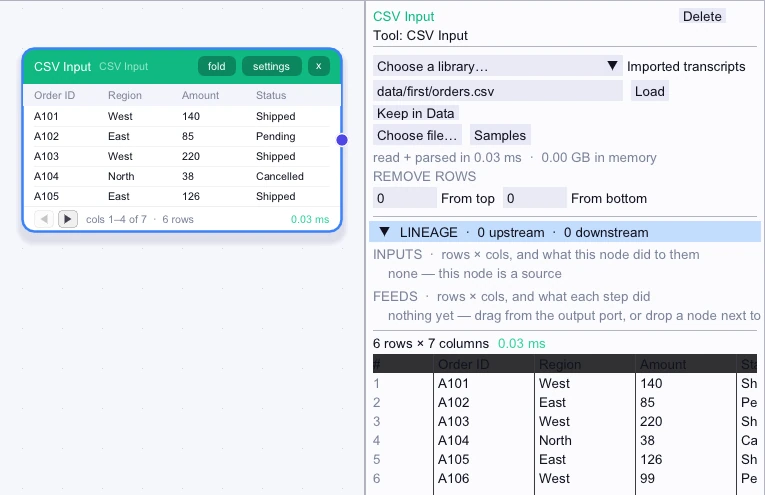
Drop a local orders CSV onto Canvas or choose the file on a CSV Input node. Use the node preview to check the headers and sample rows before wiring it to a transform.
Loaded rows
First 5 of 6 rows| Order ID | Region | Amount | Status | Customer ID | Reference |
|---|---|---|---|---|---|
| A101 | West | 140 | Shipped | C1 | Retail |
| A102 | East | 85 | Pending | C2 | Outlet |
| A103 | West | 220 | Shipped | C3 | Retail |
| A104 | North | 38 | Cancelled | C9 | Retail |
| A105 | East | 126 | Shipped | C2 | Outlet |
Complex workflow
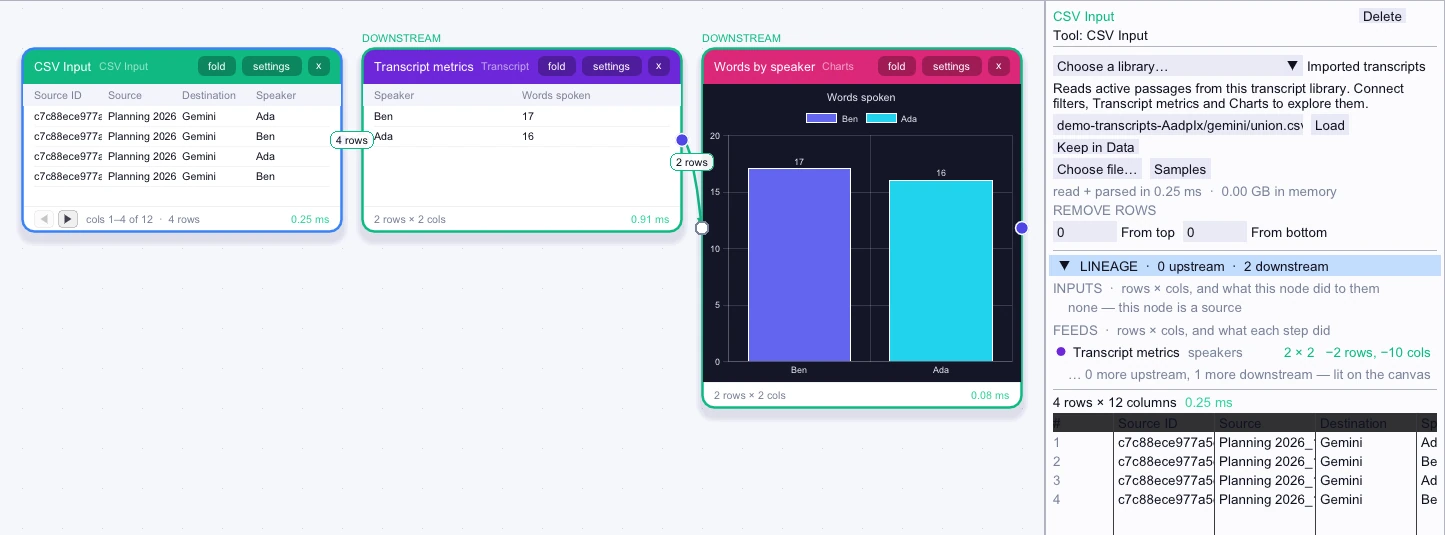
After importing transcripts, choose Gemini or Otter under Imported transcripts in CSV Input. The node reads the active passages from that library. Connect Transcript metrics and Charts to summarize vocabulary or speaker counts from the collection.
Loaded rows
4 rows| Source | Destination | Speaker | Timestamp | Time Precision | Meeting Datetime |
|---|---|---|---|---|---|
| Planning 2026_10_12 13_00 Gemini.txt | Gemini | Ada | 00:00:10 | recording block | 2026-10-12T13:00:10 |
| Planning 2026_10_12 13_00 Gemini.txt | Gemini | Ben | 00:00:21 | recording block | 2026-10-12T13:00:21 |
| Planning 2026_10_12 13_00 Gemini.txt | Gemini | Ada | 00:00:39 | recording block | 2026-10-12T13:00:39 |
| Planning 2026_10_12 13_00 Gemini.txt | Gemini | Ben | 00:01:02 | recording block | 2026-10-12T13:01:02 |
Workflow result
2 rows| Speaker | Words spoken |
|---|---|
| Ben | 17 |
| Ada | 16 |
Related research
- How CSV loading was compared with Swift
See the file, output checks, and dictionary work used to compare the two loaders.
- CSV load timing in Zig and n0is C++
See how the study timed first and warmed loads separately, with file reading outside the benchmark clock.