Canvas nodes
Column Filter
Keep or remove rows based on a pattern in one column.
How it works
Choose a single column, enter a text pattern, and decide whether to keep or remove matching rows. Use a wildcard or regular expression for variable values.
Simple example
Connect an orders table, select Status as the column, and set the pattern to Shipped with Rows set to Keep. Only rows whose Status cell matches Shipped continue.
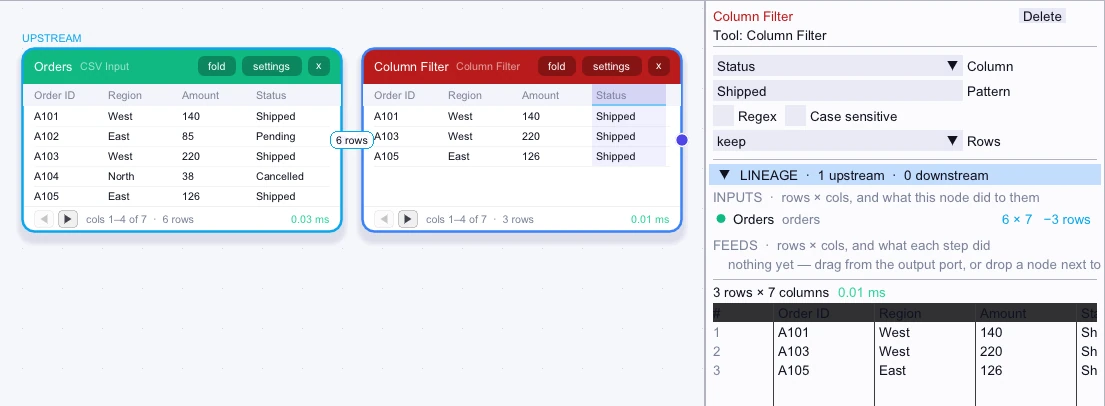
Input
First 5 of 6 rows| Order ID | Region | Amount | Status | Customer ID | Reference |
|---|---|---|---|---|---|
| A101 | West | 140 | Shipped | C1 | Retail |
| A102 | East | 85 | Pending | C2 | Outlet |
| A103 | West | 220 | Shipped | C3 | Retail |
| A104 | North | 38 | Cancelled | C9 | Retail |
| A105 | East | 126 | Shipped | C2 | Outlet |
Node output
3 rows| Order ID | Region | Amount | Status | Customer ID | Reference |
|---|---|---|---|---|---|
| A101 | West | 140 | Shipped | C1 | Retail |
| A103 | West | 220 | Shipped | C3 | Retail |
| A105 | East | 126 | Shipped | C2 | Outlet |
Complex workflow
A warehouse includes test orders whose Order ID starts with TEST-. Select Order ID, enter TEST-* as the pattern, and choose Remove. Notes and other columns can mention tests without causing a genuine order to be dropped.
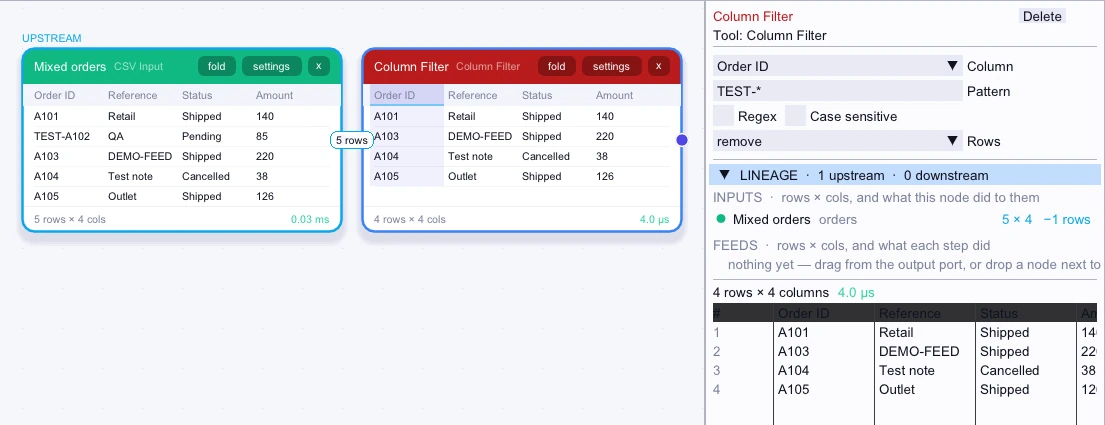
Input
5 rows| Order ID | Reference | Status | Amount |
|---|---|---|---|
| A101 | Retail | Shipped | 140 |
| TEST-A102 | QA | Pending | 85 |
| A103 | DEMO-FEED | Shipped | 220 |
| A104 | Test note | Cancelled | 38 |
| A105 | Outlet | Shipped | 126 |
Node output
4 rows| Order ID | Reference | Status | Amount |
|---|---|---|---|
| A101 | Retail | Shipped | 140 |
| A103 | DEMO-FEED | Shipped | 220 |
| A104 | Test note | Cancelled | 38 |
| A105 | Outlet | Shipped | 126 |